Introducing ArihantPlus MCP: Use AI Assistants to Analyse, Track & Trade

By
Arihant Team
Meet the future of investing with ArihantPlus MCP, a fully integrated AI driven trading experience. Seamlessly connect your ArihantPlus account with leading AI LLMs like ChatGPT, Claude, and Perplexity for free to analyse your portfolio, review holdings, and even place trades. Smarter insights, faster decisions, and AI-powered investing built for the next generation of traders.
In This Article
- Introduction
- What does it actually do?
- What is MCP?
- What you can do with ArihantPlus MCP
- Setting up your ArihantPlus trading account with MCP
- Things to know before you use MCP
- Completely Secured with your privacy controls
- Power your trading with AI using ArihantPlus MCP
- FAQs
Introduction
Most of us don't struggle to trade. We struggle to think clearly about our trades - juggling charts, holdings, margin limits, and market noise all at once. What if your AI assistant could do that thinking with you, right inside your ArihantPlus account?
That's exactly what ArihantPlus MCP (Model Context Protocol) makes possible. We're among the first trading platforms in India to offer this, and it changes how you interact with your investments and positions.
What does it actually do?
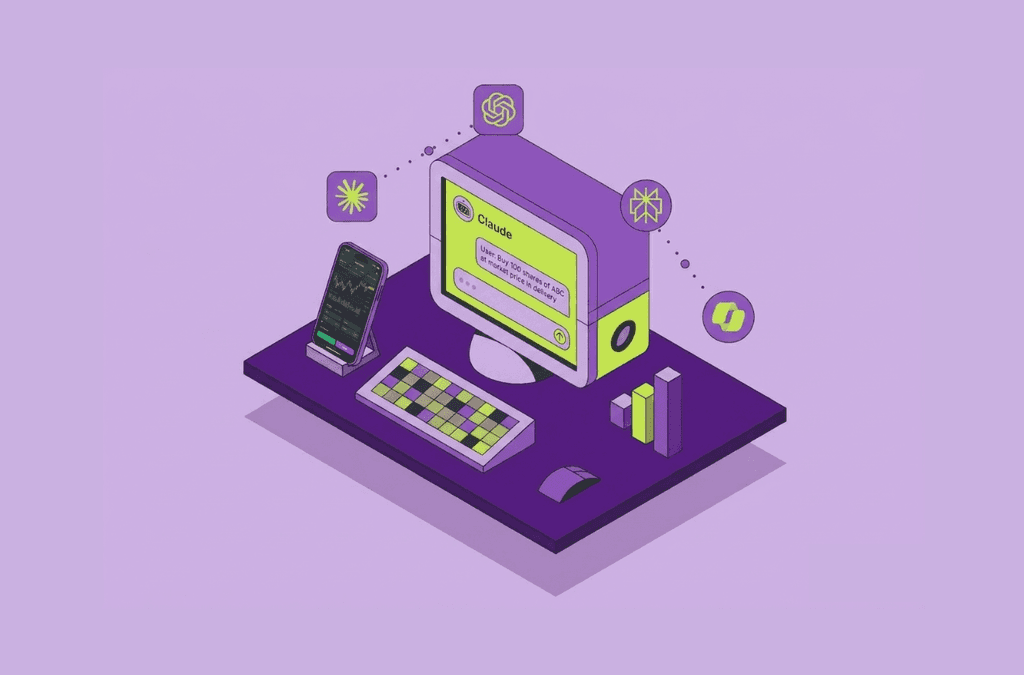
With MCP, you can connect your ArihantPlus account to AI assistants like Claude, ChatGPT, or Perplexity, and start having real conversations about your portfolio. Not generic advice based on public information but your stocks, your positions, your P&L, analysed on the spot.
- A trader waking up to a volatile market can ask: "Do I have enough margin to add to my Nifty position?"
- An investor doing a periodic review of the portfolio can ask: "Am I too concentrated in small cap stocks or a sector?"
- Someone eyeing a stock can ask: "Given my current holdings, does adding Reliance make sense?",
and get a clear, personalised answer in seconds in any language they prefer. And when they're ready to act, they can place the trade right there, through the AI.
No more switching between multiple tabs. No more guessing.
ArihantPlus MCP: Key Highlights
- Your personal AI Trading Assistant: Chat with your AI-trading assistant anything about your account and get clear, personalised answers based on your actual holdings.
- Portfolio tracking, real-time — track your holdings, open positions, and real-time P&L at a glance and get smart analysis.
- Instant margin clarity — know before you trade whether your funds will cover it
- On-demand reports — P&L statements, charges, and performance summaries, whenever you need them
- Trade with AI — place trades, check buying power, or review your positions using simple prompts
What is MCP?
Let’s first understand what MCP is and why it feels so different from anything you have used before.
Most of us use AI without context. Think of AI assistants like ChatGPT or Claude as incredibly smart, but working blind. They can explain markets, discuss strategies, and help you think through decisions. What they cannot do is see your account. So the advice you get is generic, and there is a gap between insight and action.
Model Context Protocol (MCP) closes that gap.
It is a secure bridge that connects your AI assistant directly to your ArihantPlus account. The moment that connection is live, your AI stops working in the dark and gives you information that’s relevant to you. It can now see your actual holdings, your actual trades, your real margin, your live P&L, and act on them. Ask it to analyse your portfolio, it looks at yours. Ask it to place a trade, it will calculate your exact margin requirements and place your order.
This is the shift from AI that talks to AI that works for you, with your data, in real time.
What you can do with ArihantPlus MCP
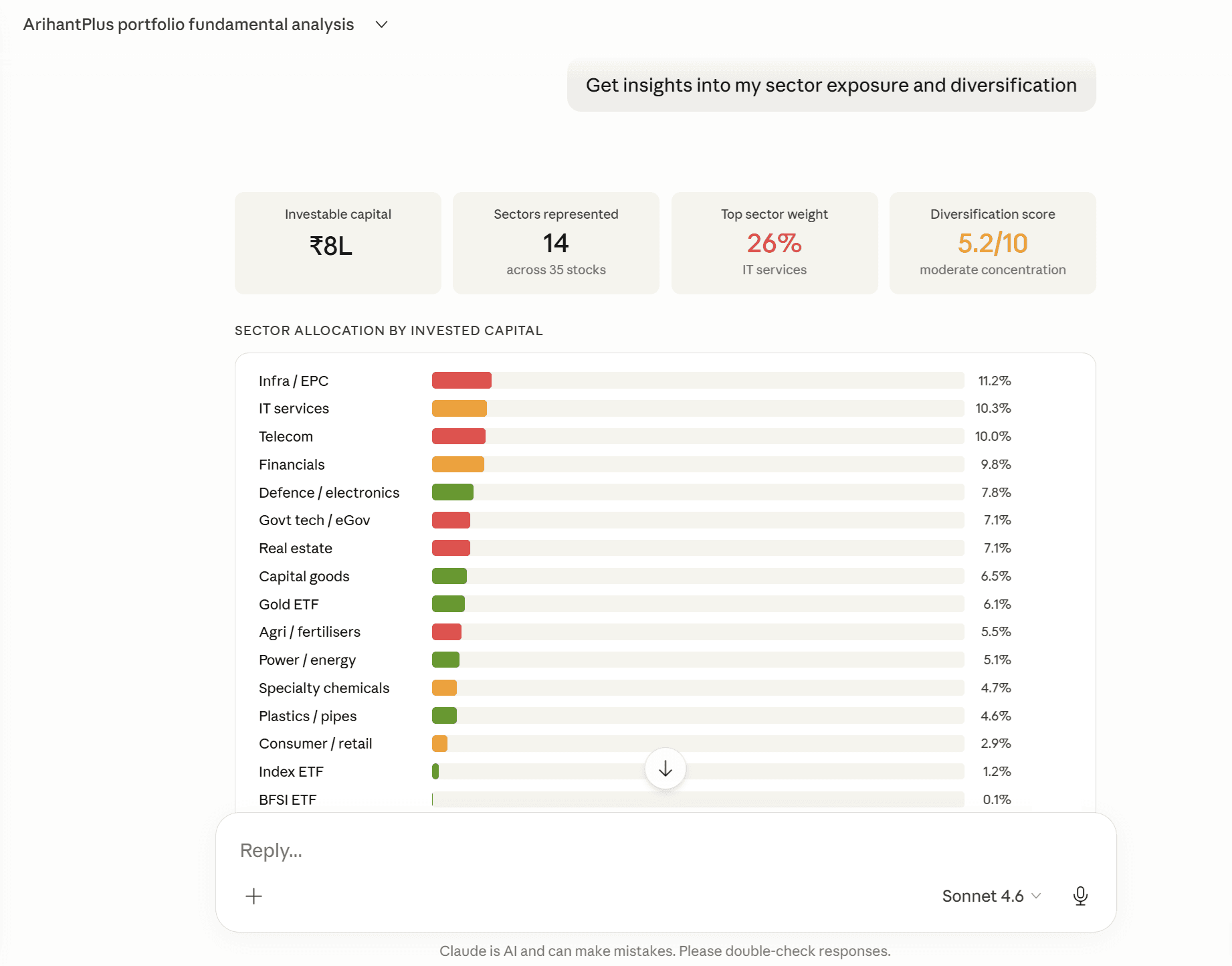
Portfolio analysis and insights
MCP brings your entire portfolio into a single conversational layer. Instead of analysing charts, reports, and market data separately, you can understand everything in the context of your own holdings. It helps you connect performance, allocation, and market movement in a way that is much easier to interpret and act on.
Questions you can ask about your portfolio:
- How diversified is my portfolio and where are the gaps?
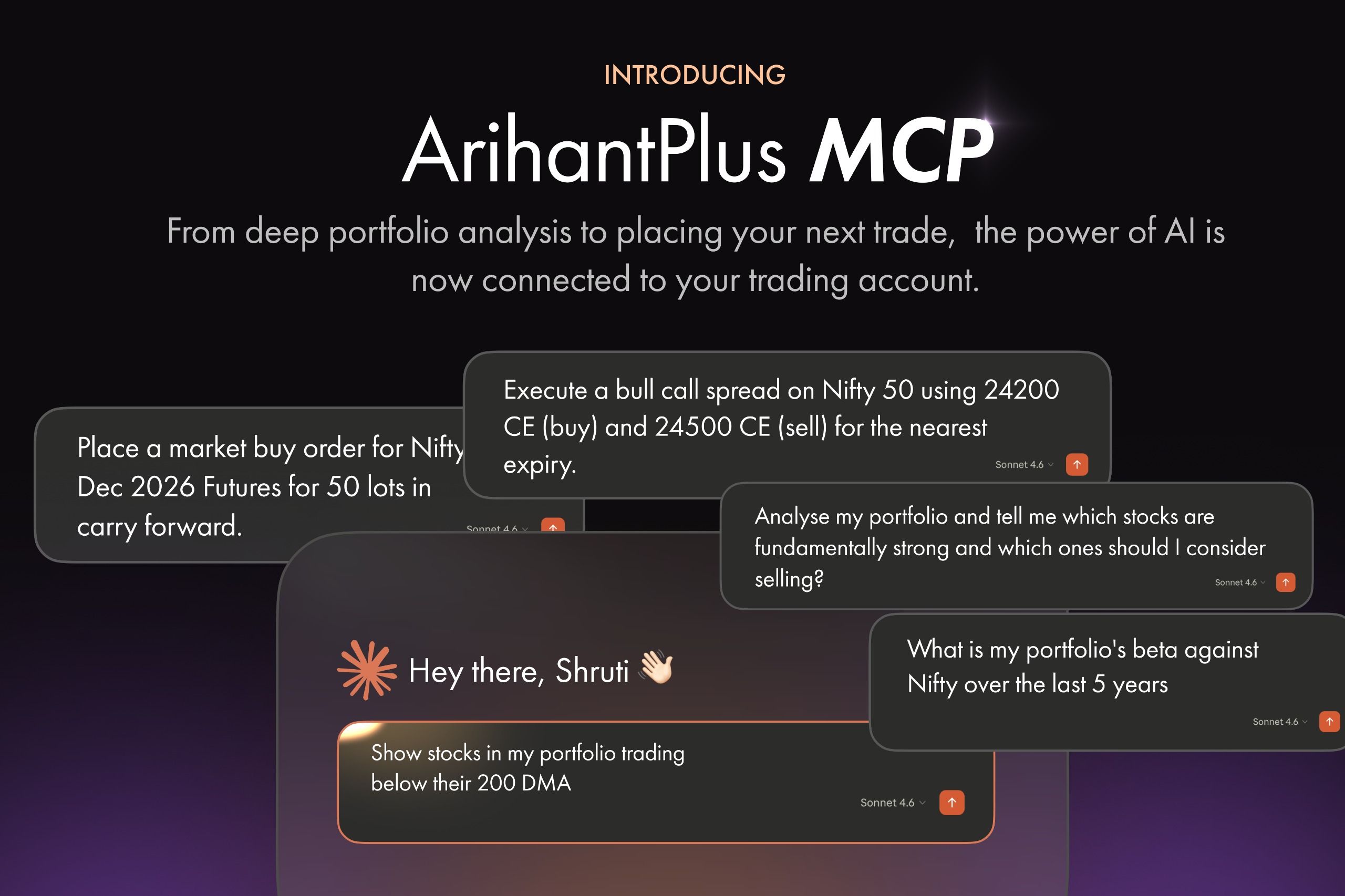
- Analyse my portfolio and tell me which stocks are fundamentally strong and which ones should I consider selling?
- Am I overexposed to any sector or stock right now?
- What is my current risk profile based on my positions?
- How does my portfolio compare against benchmark indices?
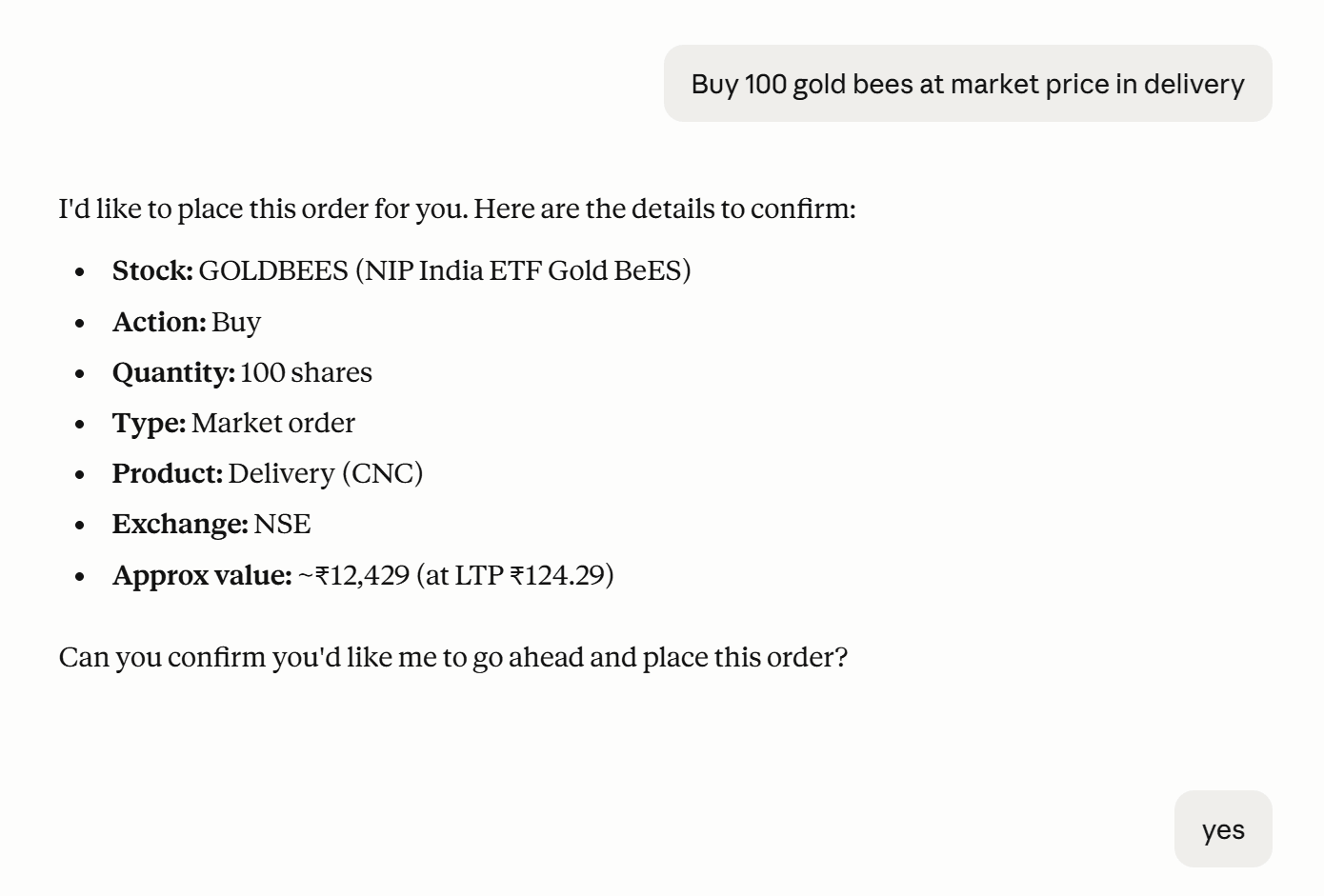
Place your trade with AI
After you’ve analysed your portfolio, you can take action and trade directly through your AI-assistant.
Here’s what you can ask:
- Place a market buy order for NiftyBees for 100 shares in my account, delivery.
- Place a stop-loss sell order for HFCL with trigger price ₹100 and limit price ₹102 for 1000 quantity.
- At 3:00 PM today, square off all my intraday positions.
- Execute a bull call spread on Nifty 50 using 24200 CE (buy) and 24500 CE (sell) for the nearest expiry.
Get all the information about your account
No more navigating through multiple screens. Get a clear snapshot of your funds, margins, positions, holdings and P&L just by chatting with your AI-assistant in any language of your choice.
Questions you can ask about your account:
- What is my profit and loss for today?
- Do I have enough margin for this F&O trade?
- How much margin is tied up across my positions?
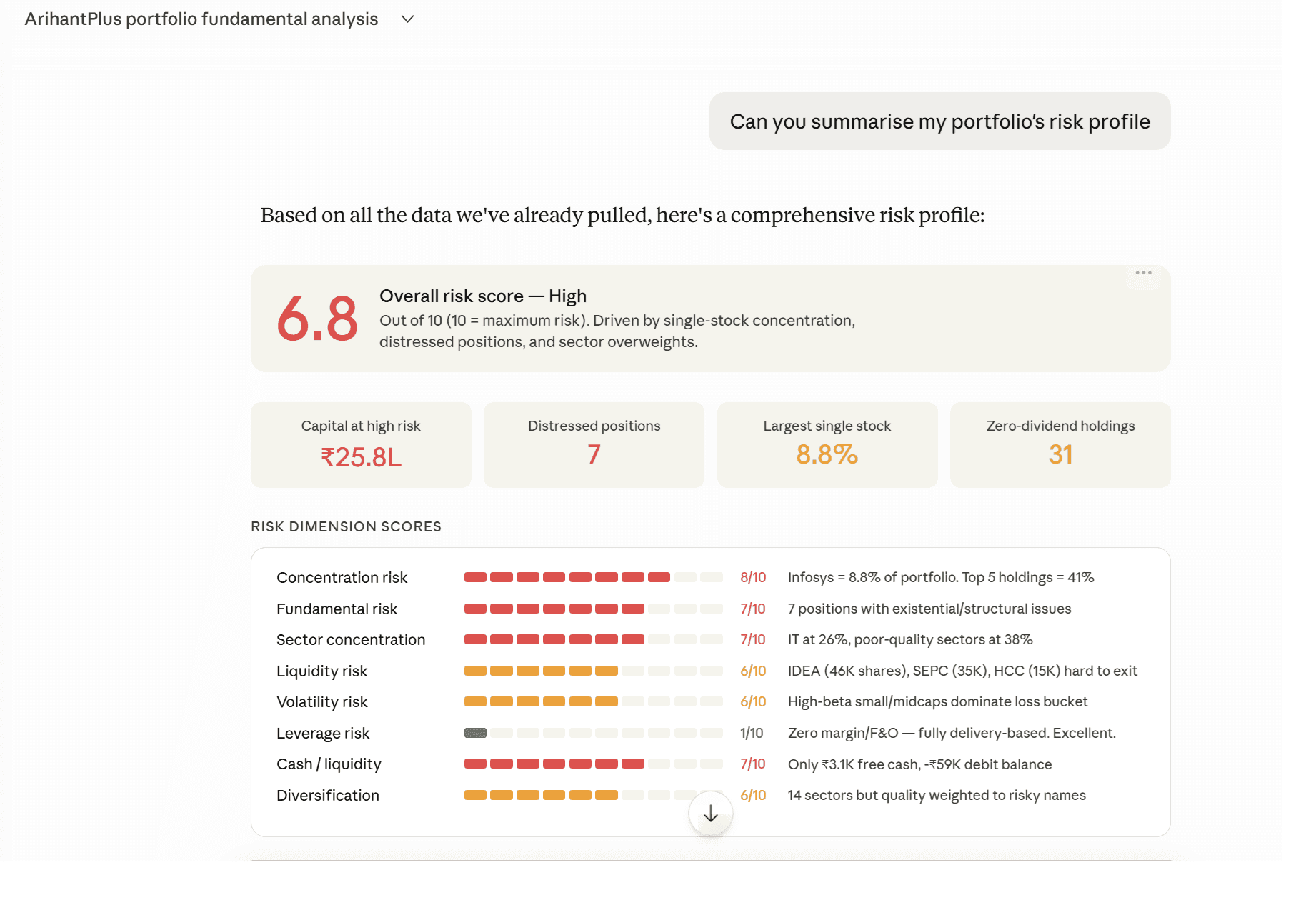
Setting up your ArihantPlus trading account with MCP
Getting started takes under two minutes.
Before you begin, there are two quick things to know.
- ArihantPlus MCP is completely free. No charges from our end.
- You will, however, need an active paid subscription to an AI assistant of your choice (Claude, ChatGPT, Cursor, VS Code with Copilot or Perplexity) to get started..
Once that is sorted, here’s how you set up.
Step 1: Open your AI assistant (such as Claude, Perplexity, ChatGPT, Cursor and VS code by Copilot) and go to Settings. Look for Connectors or Apps.
Step 2: Choose the custom connector option and enter the ArihantPlus MCP server URL: https://mcp.arihantplus.com/mcp
Step 3: Log in to your ArihantPlus account when prompted. Your credentials stay secure within ArihantPlus — the AI never sees them.
That's it. You're connected.
Now, ask away anything you want regarding your trading account, place trades and make the most of AI-power on ArihantPlus seamlessly!
Claude Desktop
- Click on Customise: Go to the Claude dashboard and navigate to the Customise section.
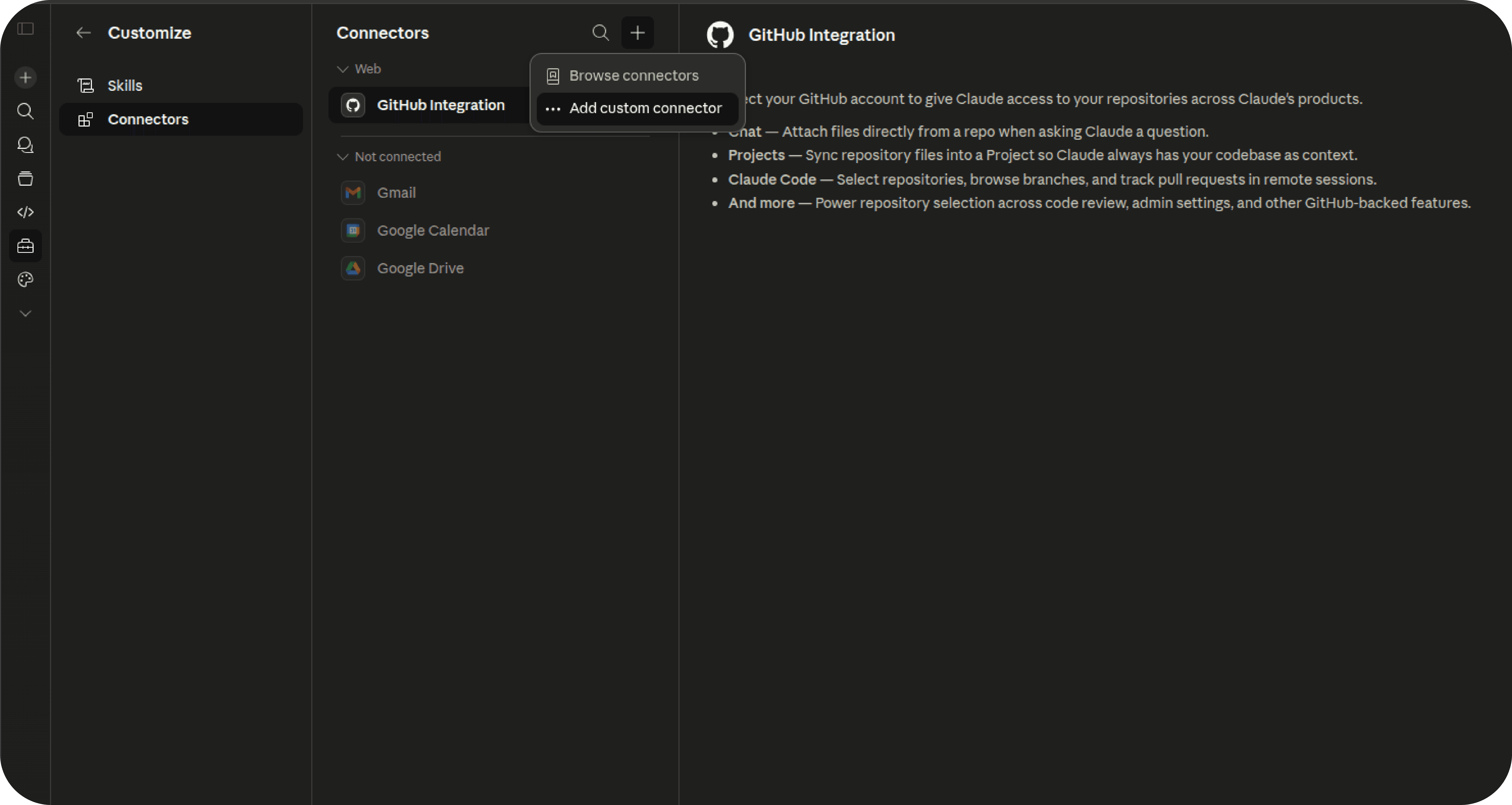
- Connect your apps: Click on Connectors from the sidebar
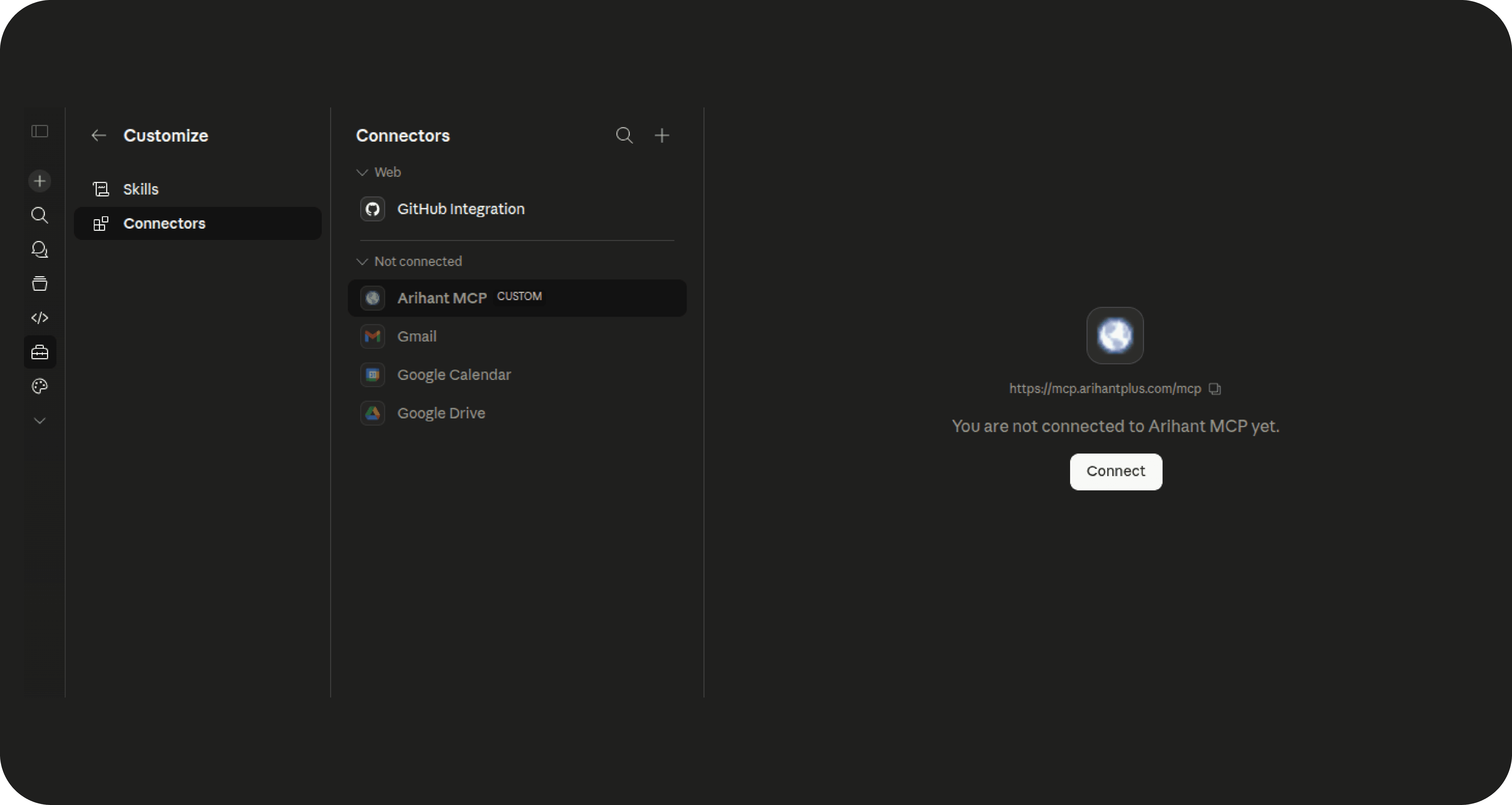
- Add Custom Connector: Click on the “+” sign on the top and select “Add Custom Connector” from the available options.
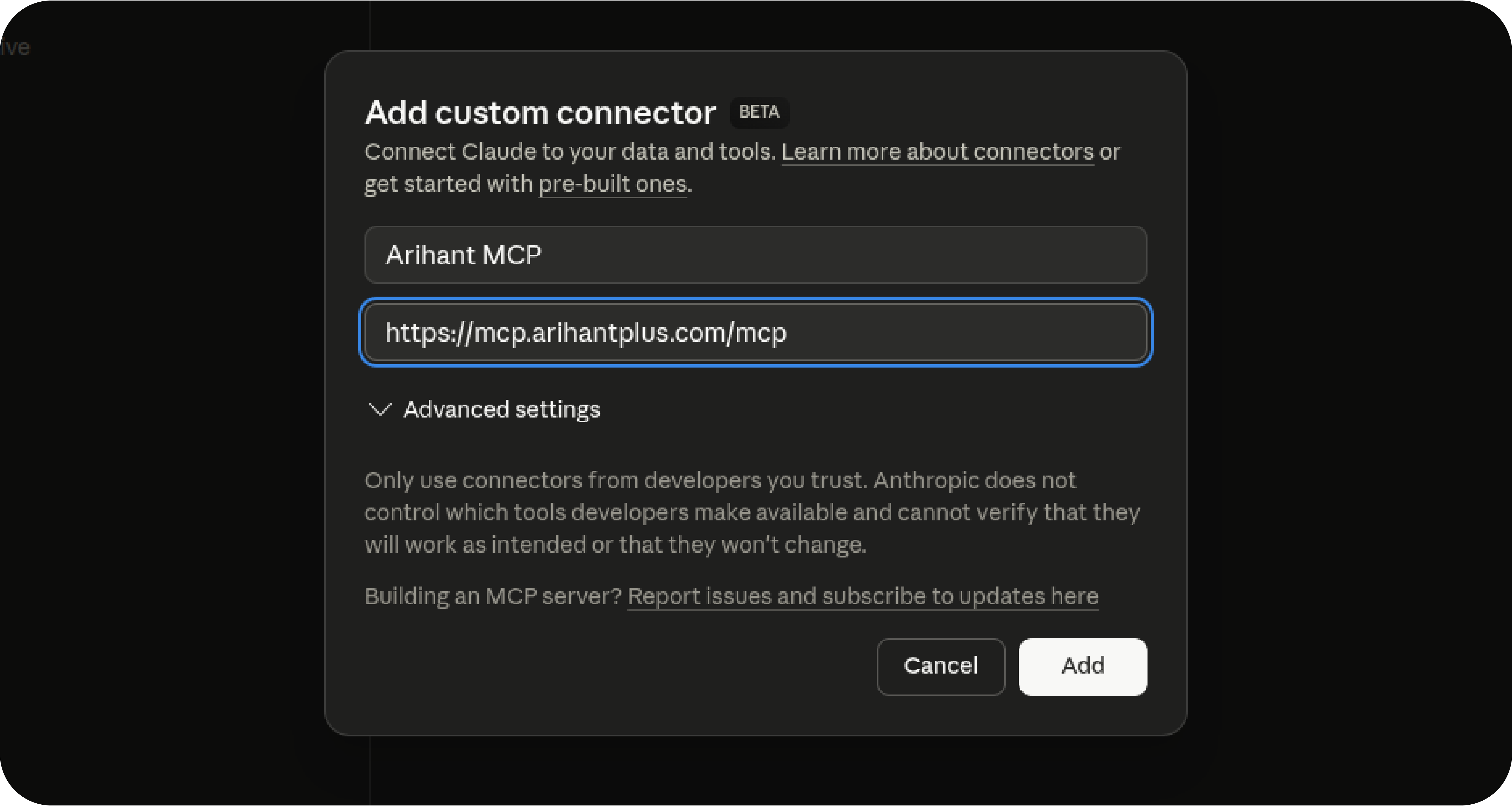
- Configure MCP: Add name of your MCP like “ArihantPlus MCP”, and enter the MCP URL https://mcp.arihantplus.com/mcp in the “Remote MCP Server URL” ” field and Click on Add button.
- Login: Once the connector is added, a login screen will appear. Enter your Arihant Plus credentials to continue. After successful login, a confirmation screen will be displayed.
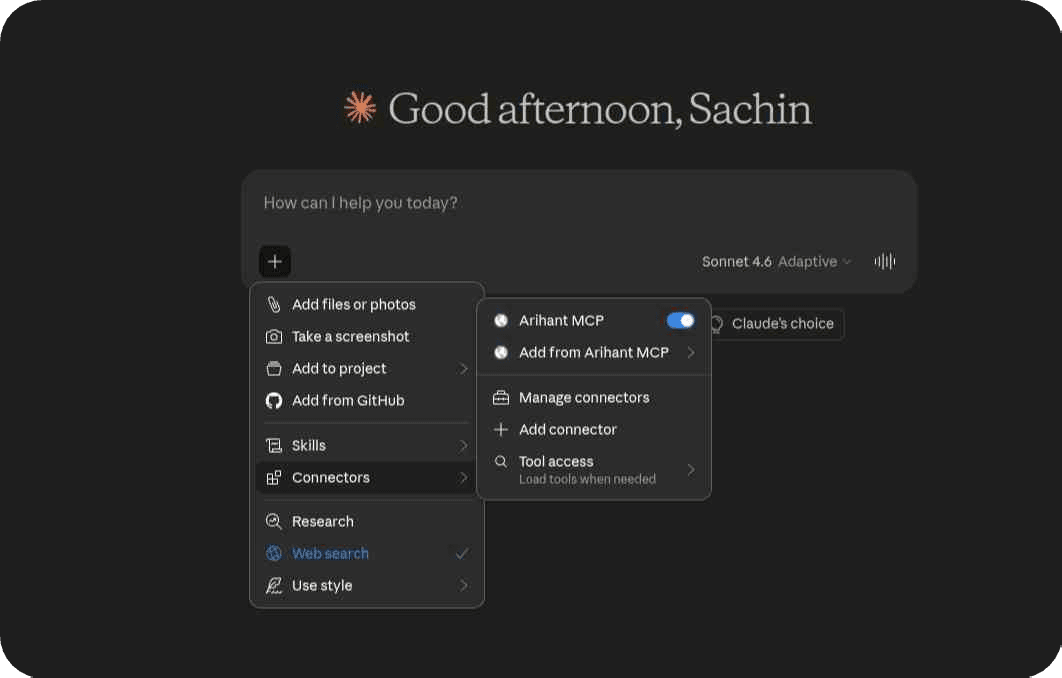
- Verify Connection: Return to the connectors list and confirm that Arihant Plus MCP is now visible.
You can now start using Arthant MCP directly within Claude conversations.
ChatGPT
ChatGPT supports MCP through custom apps and Developer mode. For the full setup process, see the official guide: Developer mode and MCP apps in ChatGPT (beta) on the OpenAI Help Center.
- Open Apps section: Go to Settings (or Workspace Settings if you are using a team account) and navigate to the Apps section.
- Enable Developer mode: Inside Apps, open Advanced settings and turn on Developer mode.
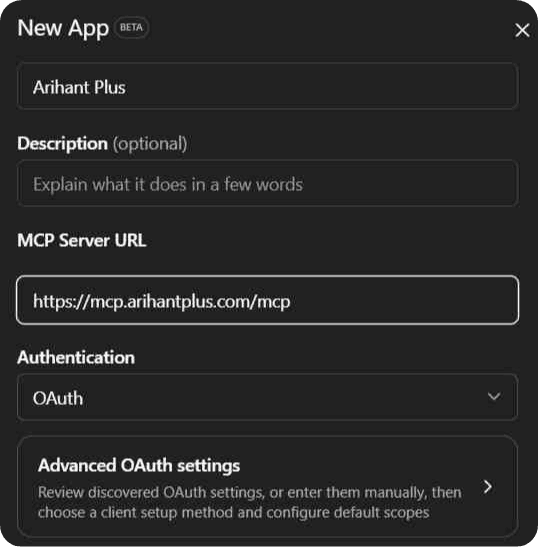
Create ArihantPlus MCP app: Click on Create app and enter the ArihantPlus MCP server details. Use the provided endpoint to complete the ArihantPlus login.
- Start using ArihantPlus in chat: Once the connection is successful and you see the confirmation, go to the connectors/tools section and select ArihantPlus MCP.
You can now start asking questions and interacting with your portfolio directly within ChatGPT.
Perplexity
- Open Connectors: Go to Perplexity Settings and navigate to “Connectors and Sources”. Click on “Manage Connectors” to view available integrations.
- Add Custom Connector: Scroll down to the Custom Connector section.
- Configure MCP: Click “Add Custom Connector” and enter the MCP details using the Arihant Plus MCP server endpoint. Complete any additional fields as prompted.
- Authenticate: A login screen will appear. Sign in using your Arihant Plus credentials. After successful login, a confirmation popup will be displayed.
- Start using ArihantPlus in chat: Return to the chat interface and select Arihant Plus MCP from the connectors list.
Things to know before you use MCP
- Connect with only supported AI tools: ArihantPlus MCP currently works with AI-platforms that offer MCP like Claude, ChatGPT, Perplexity, Cursor, and VS Code with Copilot. If you are using a different AI that does not support MCP yet, you will need to wait or switch to one of the supported options.
- Daily re-authorization: For security, your account connection resets every day and will need a quick re-login.
- Connection issues: Ensure your ArihantPlus account is active and that you're using the correct server URL: https://mcp.arihantplus.com/mcp. If it's still not connecting, restart your AI client.
- Authentication problems: If authorization fails, check your internet connection and verify your credentials work on the main ArihantPlus platform. If you’re still facing an issue, try disconnecting and reconnecting, or clear your browser cache if authenticating via browser.
- AI response issues: AI assistants can occasionally make mistakes. If a response seems incorrect or incomplete, try asking a more specific question, or request clarification. For anything important, cross check directly with ArihantPlus app.
None of this takes away from what MCP can do, but it helps to know these upfront so you have the right expectations from day one.
Completely Secured with your privacy controls
ArihantPlus MCP is designed to work securely with your account. Your login details and personal information stay within ArihantPlus. The AI never sees sensitive data like PAN, bank details, or contact information.
Power your trading with AI using ArihantPlus MCP
Markets don't wait, and neither should your decisions. MCP puts a sharp, always-on analyst in your corner who knows your portfolio inside out, answers in seconds, and acts when you're ready.
This is just the beginning of how ArihantPlus is bringing AI into your investing journey. And the best way to understand what it can do? Try it yourself.
Connect ArihantPlus MCP today and start investing smarter.
Disclaimer: MCP outputs are for informational purposes only and do not constitute investment advice. Please conduct your own research before making any trading decisions. This feature currently supports Stocks and F&O only. Some features require DDPI authorisation and a third-party AI subscription.
FAQs
What is MCP?
MCP stands for Model Context Protocol. It allows your AI assistant to connect with your ArihantPlus account and understand your real portfolio. This means it can help you analyse your investments and take actions in real time.
Is my data secure?
Yes, your data is secure. Your sensitive details like PAN and bank information stay within ArihantPlus. The AI does not have access to this private information.
Which AI models can I connect with?
You can connect ArihantPlus MCP with AI tools like Claude, ChatGPT, Cursor, Perplexity and VS Code with Copilot. These tools support MCP and allow you to interact with your account.
Where can I access ArihantPlus MCP?
You can access ArihantPlus MCP through supported AI tools. Open your AI app, go to settings, and connect the ArihantPlus MCP server. Once connected, you can start using it in chat.

Related Topics

Pulse by Arihant: Your Real-Time Market Radar Has Landed on ArihantPlus
New Features Live: ArihantPlus Mobile App just got an upgrade!